Getting Started
What you'll do in this guide
In this guide, you'll:
- confirm that your project meets the SDK requirements
- retrieve your AudioEye entitlement token
- configure
npm,yarn, orpnpmto install AudioEye packages - install your first SDK package
- verify that the installation works locally
- configure CI/CD so your builds can install the SDK securely
If you want the fastest path to a first successful run, start with the CLI. It is the quickest way to confirm that your token, package-manager configuration, and local environment are all working.
What success looks like
By the end of onboarding, you should be able to:
- install an AudioEye SDK package from your project's root
- run one successful accessibility scan locally
- add the entitlement token to CI/CD so installs work outside your machine
- continue into the package guide that matches your existing test workflow
Available packages
AudioEye's Accessibility Testing SDK is available as npm packages:
- CLI -
@audioeye/testing-sdk-clifor scanning a URL, page, or HTML document - Jest -
@audioeye/testing-sdk-jestfor component-level testing in unit and integration tests - Playwright -
@audioeye/testing-sdk-playwrightfor browser-based end-to-end and workflow testing - Cypress -
@audioeye/testing-sdk-cypressfor browser-based end-to-end and workflow testing in Cypress - Core -
@audioeye/testing-sdk-corefor custom integrations when you need lower-level control
Choose the right starting point
If you're new to the SDK, start with the package that best matches how your team already tests the application:
- Use the CLI if you want the fastest way to scan a page or local HTML file.
- Use Jest if you want to catch accessibility issues while testing components.
- Use Playwright or Cypress if you need to test full user flows such as login, checkout, routing, or authenticated pages.
- Use Core only if you are building your own wrapper or integrating the rules into a custom test harness.
Requirements
The AudioEye Accessibility Testing SDK supports Node.js 20, 22, and 24.
You will also need:
- an AudioEye entitlement token
- a JavaScript or TypeScript project that uses
npm,yarn, orpnpm - access to your project's package root, where
package.jsonlives
Before you install anything
AudioEye distributes SDK packages through Cloudsmith. Before you can install any SDK package, you must retrieve your AudioEye entitlement token and configure your package manager to use it.
This token is available in the AudioEye Customer Portal.
Step 1: Get your entitlement token
- Log in to the AudioEye Customer Portal.
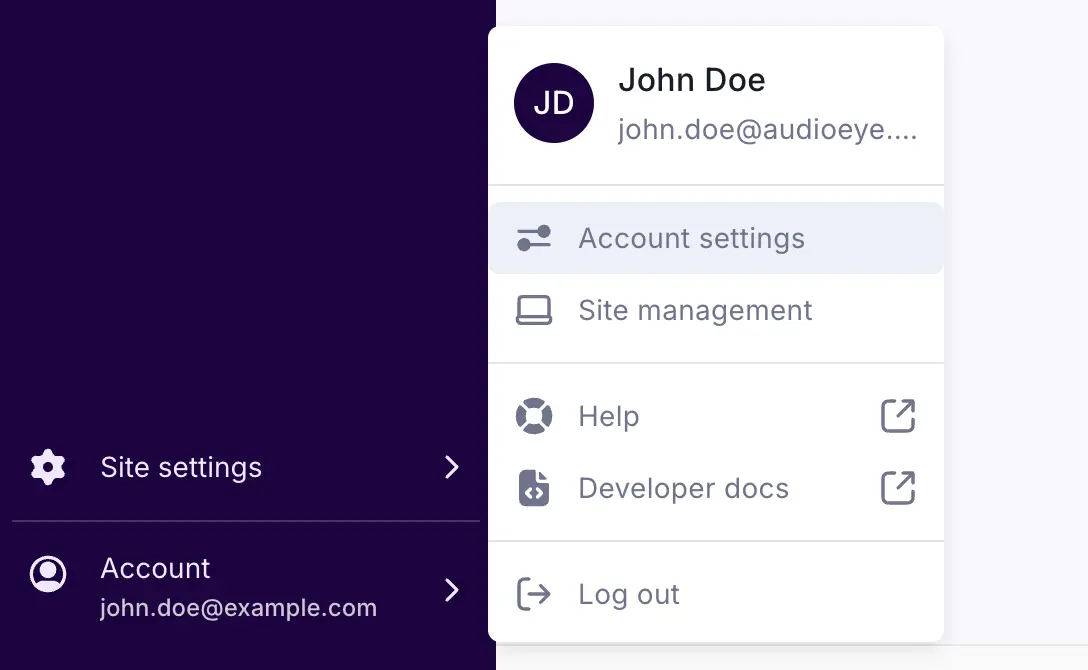
- Open the account menu and select My Account.
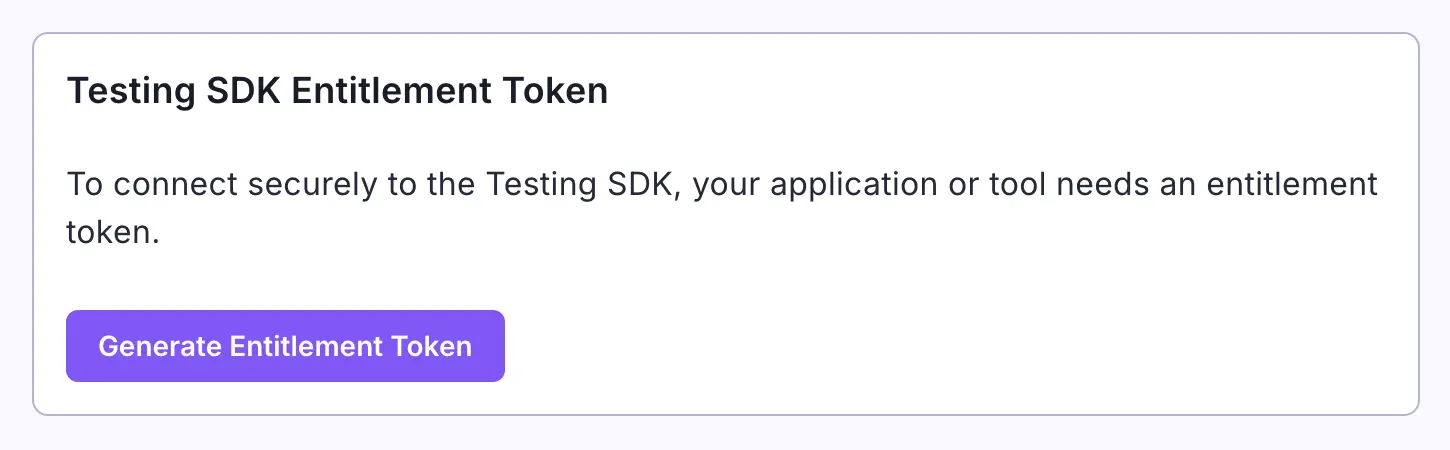
- Scroll to the Testing SDK Entitlement Token section.
- If a token has not been created yet, click Generate Entitlement Token.
- Click Copy Entitlement Token to copy the token.
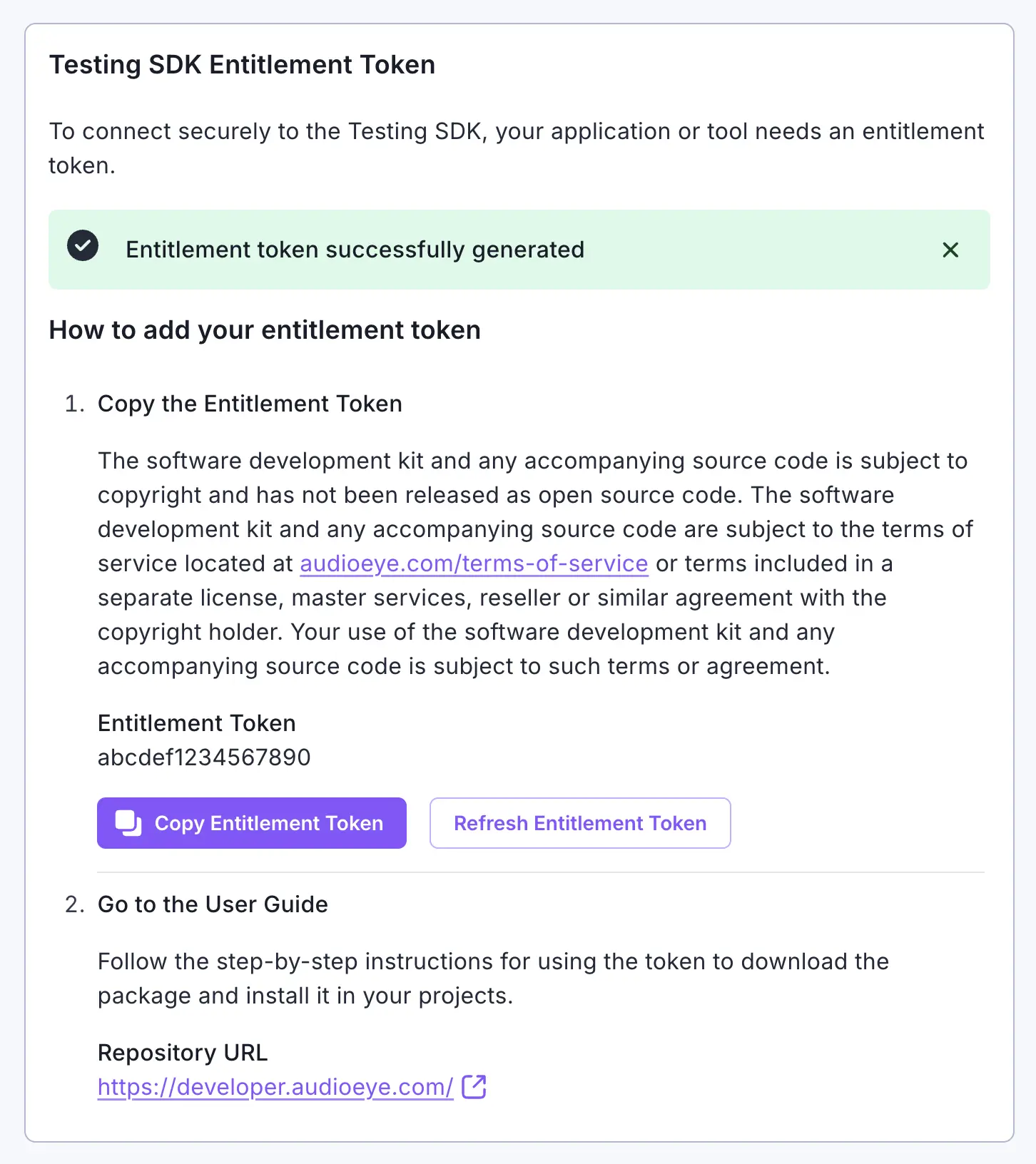
In the rest of this guide, this token is referenced as AUDIOEYE_ENTITLEMENT_TOKEN.
Refresh your entitlement token
If you need to rotate your token, follow these steps:
- Log in to the AudioEye Customer Portal.
- Open the account menu and select My Account.
- Scroll to the Testing SDK Entitlement Token section.
- Click Refresh Entitlement Token.
- Click Copy Entitlement Token to copy the new token.
After rotating the token, update every local environment and CI/CD secret that uses it. Then repeat the configuration steps in Step 2: Configure your package manager.
Step 2: Configure your package manager
Choose the package manager your project already uses, then add the configuration file at the root of the project. The
root is the directory that contains package.json.
If the file already exists, add the @audioeye registry settings to the existing file instead of replacing the whole
file.
- npm (.npmrc)
- yarn (.yarnrc.yml)
- pnpm (.npmrc)
Create or update .npmrc in your project root with:
@audioeye:registry=https://npm.cloudsmith.io/audioeye-K01/audioeye/
//npm.cloudsmith.io/audioeye-K01/audioeye/:_authToken=${AUDIOEYE_ENTITLEMENT_TOKEN}
Recommended: use the environment-variable reference shown above instead of hardcoding the token directly into
.npmrc.
To set the environment variable:
- Temporarily in your current shell session:
export AUDIOEYE_ENTITLEMENT_TOKEN=your-token-here
- Persistently for local development: add the same
exportcommand to your shell profile, such as~/.zshrcor~/.bashrc. - In CI/CD: store the token as a secret and expose it as
AUDIOEYE_ENTITLEMENT_TOKENduring dependency installation.
Never commit the token value to source control.
Verify your npm configuration
Install one of the SDK packages:
npm install -D @audioeye/testing-sdk-cli
If installation succeeds, your registry configuration is working.
If installation fails with an authentication or package-resolution error, confirm that:
AUDIOEYE_ENTITLEMENT_TOKENis set in the same shell where you runnpm install.npmrcis in the same directory aspackage.json- the
@audioeyeregistry lines were added exactly as shown above
Create or update .yarnrc.yml in your project root with:
npmScopes:
  audioeye:
    npmAlwaysAuth: true
    npmAuthToken: '${AUDIOEYE_ENTITLEMENT_TOKEN}'
    npmRegistryServer: 'https://npm.cloudsmith.io/audioeye-K01/audioeye/'
Recommended: use the environment-variable reference shown above instead of hardcoding the token directly into
.yarnrc.yml.
To set the environment variable:
- Temporarily in your current shell session:
export AUDIOEYE_ENTITLEMENT_TOKEN=your-token-here
- Persistently for local development: add the same
exportcommand to your shell profile, such as~/.zshrcor~/.bashrc. - In CI/CD: store the token as a secret and expose it as
AUDIOEYE_ENTITLEMENT_TOKENduring dependency installation.
Never commit the token value to source control.
Verify your Yarn configuration
Install one of the SDK packages:
yarn add -D @audioeye/testing-sdk-cli
If installation succeeds, your registry configuration is working.
If installation fails with an authentication or package-resolution error, confirm that:
AUDIOEYE_ENTITLEMENT_TOKENis set in the same shell where you runyarn install.yarnrc.ymlis in the same directory aspackage.json- the
npmScopes.audioeyeconfiguration was added exactly as shown above
Create or update .npmrc in your project root with:
@audioeye:registry=https://npm.cloudsmith.io/audioeye-K01/audioeye/
//npm.cloudsmith.io/audioeye-K01/audioeye/:_authToken=${AUDIOEYE_ENTITLEMENT_TOKEN}
pnpm reads npm registry authentication from .npmrc, so you can use the same private-registry configuration shown for
npm.
Recommended: use the environment-variable reference shown above instead of hardcoding the token directly into
.npmrc.
To set the environment variable:
- Temporarily in your current shell session:
export AUDIOEYE_ENTITLEMENT_TOKEN=your-token-here
- Persistently for local development: add the same
exportcommand to your shell profile, such as~/.zshrcor~/.bashrc. - In CI/CD: store the token as a secret and expose it as
AUDIOEYE_ENTITLEMENT_TOKENduring dependency installation.
Never commit the token value to source control.
Verify your pnpm configuration
Install one of the SDK packages:
pnpm add -D @audioeye/testing-sdk-cli
If installation succeeds, your registry configuration is working.
If installation fails with an authentication or package-resolution error, confirm that:
AUDIOEYE_ENTITLEMENT_TOKENis set in the same shell where you runpnpm install.npmrcis in the same directory aspackage.json- the
@audioeyeregistry lines were added exactly as shown above
Step 3: Install your first SDK package
Once your package manager is configured, install the SDK package that matches your workflow.
If you are evaluating the SDK for the first time, start with the CLI even if you plan to use Jest, Playwright, or Cypress later. It gives you the shortest path to a first successful run.
- CLI
- Jest
- Playwright
- Cypress
- Core
npm install -D @audioeye/testing-sdk-cli
yarn add -D @audioeye/testing-sdk-cli
pnpm add -D @audioeye/testing-sdk-cli
Recommended first step for new users.
Then continue with the CLI guide.
npm install -D @audioeye/testing-sdk-jest
yarn add -D @audioeye/testing-sdk-jest
pnpm add -D @audioeye/testing-sdk-jest
Then continue with the Jest guide.
npm install -D @audioeye/testing-sdk-playwright
yarn add -D @audioeye/testing-sdk-playwright
pnpm add -D @audioeye/testing-sdk-playwright
Then continue with the Playwright guide.
npm install -D @audioeye/testing-sdk-cypress
yarn add -D @audioeye/testing-sdk-cypress
pnpm add -D @audioeye/testing-sdk-cypress
Then continue with the Cypress guide.
npm install -D @audioeye/testing-sdk-core
yarn add -D @audioeye/testing-sdk-core
pnpm add -D @audioeye/testing-sdk-core
Then continue with the Core / custom integrations guide.
Step 4: Verify the installation
After installation, run a quick verification so you know onboarding is complete before moving into framework-specific setup.
Fastest verification path: use the CLI
If you installed the CLI, run:
- npm / npx
- Yarn
- pnpm
npx aetest scan 'https://www.audioeye.com'
yarn aetest scan 'https://www.audioeye.com'
pnpm exec aetest scan 'https://www.audioeye.com'
A successful first run typically confirms that:
- the package installed correctly
- your entitlement token is configured correctly
- your local environment can execute the SDK successfully
If you installed a framework-specific package
If you started with Jest, Playwright, or Cypress instead of the CLI, continue to the corresponding guide and complete its first example:
CI/CD integration
The most important CI/CD requirement is that your entitlement token must be available as the
AUDIOEYE_ENTITLEMENT_TOKEN environment variable during dependency installation.
CI/CD checklist
Before you add the SDK to your pipeline, make sure that:
- your repository already contains the correct
.npmrcor.yarnrc.ymlconfiguration - your CI provider stores
AUDIOEYE_ENTITLEMENT_TOKENas a secret - the secret is exposed during
npm install,npm ci,yarn install, orpnpm install - your workflow uses a supported Node.js version:
20,22, or24
GitHub Actions example
- Make sure your repository already contains the
.npmrcor.yarnrc.ymlconfiguration shown above. - Create a
repository secret in GitHub
named
AUDIOEYE_ENTITLEMENT_TOKEN. - Expose that secret during dependency installation so the package manager can authenticate to Cloudsmith.
- npm
- yarn
- pnpm
name: Pull Request CI

on:
  pull_request:

permissions:
  contents: read

jobs:
  build:
    name: Build and Test
    runs-on: ubuntu-latest
    steps:
      - uses: actions/checkout@v6

      - name: Setup Node
        uses: actions/setup-node@v6
        with:
          node-version: '24'

      - name: Install dependencies
        env:
          AUDIOEYE_ENTITLEMENT_TOKEN: ${{ secrets.AUDIOEYE_ENTITLEMENT_TOKEN }}
        run: npm ci

      - name: Build
        run: npm run build

      - name: Test
        run: npm test
name: Pull Request CI

on:
  pull_request:

permissions:
  contents: read

jobs:
  build:
    name: Build and Test
    runs-on: ubuntu-latest
    steps:
      - uses: actions/checkout@v6

      - name: Setup Node
        uses: actions/setup-node@v6
        with:
          node-version: '24'

      - name: Install dependencies
        env:
          AUDIOEYE_ENTITLEMENT_TOKEN: ${{ secrets.AUDIOEYE_ENTITLEMENT_TOKEN }}
        run: yarn install --immutable

      - name: Build
        run: yarn run build

      - name: Test
        run: yarn test
name: Pull Request CI

on:
  pull_request:

permissions:
  contents: read

jobs:
  build:
    name: Build and Test
    runs-on: ubuntu-latest
    steps:
      - uses: actions/checkout@v6

      - name: Setup pnpm
        uses: pnpm/action-setup@v5

      - name: Setup Node
        uses: actions/setup-node@v6
        with:
          node-version: '24'
          cache: 'pnpm'

      - name: Install dependencies
        env:
          AUDIOEYE_ENTITLEMENT_TOKEN: ${{ secrets.AUDIOEYE_ENTITLEMENT_TOKEN }}
        run: pnpm install --frozen-lockfile

      - name: Build
        run: pnpm build

      - name: Test
        run: pnpm test
Security guidance
Follow these practices when configuring the SDK in local and CI environments:
- keep the entitlement token in environment variables or secret managers
- do not hardcode the token in committed files
- rotate the token if you believe it has been exposed
- update all developer environments and CI secrets immediately after rotating the token
- use a unique token for CI environments and for each user
Next steps
After completing this guide, continue to the package-specific documentation for the workflow you want to use:
If you run into installation or authentication issues, see Troubleshooting.