MCP Server
The AudioEye MCP server (@audioeye/testing-sdk-mcp) is a Model Context Protocol
server that lets a coding agent scan a live page for accessibility issues and fix them at the source. It drives a real
Chrome, scans with the AudioEye Testing SDK, attaches a JSX source location to each issue where it can, and exposes the
results as MCP tools.
It works with any MCP host: Claude Code, Cursor, VS Code, Codex, Gemini CLI, Windsurf, Zed, or Claude Desktop. It is published to the public npm registry and licensed through a browser sign-in, so it needs no private-registry setup. The other SDK packages keep their own setup; see Getting Started.
Requirements
- Node.js 22 or newer (
node --version). The Claude Desktop.mcpbbundle brings its own runtime. - An AudioEye account with Testing SDK access. If the Testing SDK Credentials card is missing under Account settings in the AudioEye Platform, contact your AudioEye representative.
- macOS or Linux. Windows works, with best-effort symlink containment on file writes.
Step 1: Install and register
Run setup once, then restart your host:
npx -y @audioeye/testing-sdk-mcp@latest setup
Nothing is installed globally. setup finds Claude Code, Cursor, VS Code, Windsurf, Zed, Codex, and Gemini CLI and
registers the server with each at user scope under the key audioeye, so tools appear as mcp__audioeye__*. Each entry
starts the server with npx --prefix / -y @audioeye/testing-sdk-mcp@latest; npx caches the package on the first start
and @latest picks up new releases on each restart. For Claude Code it also allows mcp__audioeye__* in
permissions.allow; for Codex it sets startup_timeout_sec = 60. setup is safe to re-run, and setup --dry-run
shows what it would write.
--prefix /?npx runs from the folder your host opened and reads that folder's package.json. Conflicting overrides there make npm
refuse to run (EOVERRIDE) and the host shows "Connection closed". --prefix / makes npx skip that file.
Register with a specific host
A host flag registers only that host. For Claude Code, VS Code, and Gemini CLI it switches to project scope; add
--global for user scope. Each tab also shows the by-hand registration.
- Claude Code
- Codex
- Gemini CLI
- Cursor
- VS Code
- Windsurf / Zed
- Claude Desktop
npx -y @audioeye/testing-sdk-mcp@latest setup --claude --global   # user scope
npx -y @audioeye/testing-sdk-mcp@latest setup --claude            # project scope
By hand:
claude mcp add audioeye --scope user -- npx --prefix / -y @audioeye/testing-sdk-mcp@latest
Or as a plugin, with no terminal:
/plugin marketplace add https://downloads.audioeye.com/mcp/marketplace.json
/plugin install audioeye-mcp@audioeye
The plugin names the server plugin_audioeye-mcp_audioeye, so its prompts are
/mcp__plugin_audioeye-mcp_audioeye__scan and so on. Use the plugin or a direct registration, not both. The Claude Code
extension inside VS Code reads Claude Code's settings, so use these commands there too.
npx -y @audioeye/testing-sdk-mcp@latest setup --codex
Codex's VS Code plugin starts servers with a bare PATH where npx is missing, so the entry goes through your login
shell. By hand:
codex mcp add audioeye -- $SHELL -lic 'exec npx --prefix / -y @audioeye/testing-sdk-mcp@latest'
On Windows use cmd /c npx --prefix / -y @audioeye/testing-sdk-mcp@latest. After a by-hand add, set
startup_timeout_sec = 60 on the audioeye entry in ~/.codex/config.toml.
npx -y @audioeye/testing-sdk-mcp@latest setup --gemini --global   # user scope
npx -y @audioeye/testing-sdk-mcp@latest setup --gemini            # project scope
By hand:
gemini mcp add --scope user audioeye npx -- --prefix / -y @audioeye/testing-sdk-mcp@latest
npx -y @audioeye/testing-sdk-mcp@latest setup --cursor # ~/.cursor/mcp.json
Or one click: Install in Cursor
For GitHub Copilot and VS Code's built-in MCP support:
npx -y @audioeye/testing-sdk-mcp@latest setup --vscode --global   # user-profile mcp.json
npx -y @audioeye/testing-sdk-mcp@latest setup --vscode            # ./.vscode/mcp.json
By hand:
code --add-mcp '{"name":"audioeye","command":"npx","args":["--prefix","/","-y","@audioeye/testing-sdk-mcp@latest"]}'
Or one click: Install in VS Code
npx -y @audioeye/testing-sdk-mcp@latest setup --windsurf          # ~/.codeium/windsurf/mcp_config.json
npx -y @audioeye/testing-sdk-mcp@latest setup --zed               # ~/.config/zed/settings.json
Download audioeye-mcp.mcpb and open it with Claude Desktop, then sign in from the chat (Step 2). Or add the server by hand under Settings → Developer → Edit Config and restart:
{
  "mcpServers": {
    "audioeye": {
      "command": "npx",
      "args": ["--prefix", "/", "-y", "@audioeye/testing-sdk-mcp@latest"]
    }
  }
}
Staying up to date
Restarting the host runs the newest release, because every registration resolves @latest on start. The server also
checks npm once a day and notes "newer version available, restart the host" in tool results until you do. The Claude
Code plugin and the .mcpb bundle update through their own channels.
Step 2: Sign in
Scans need an AudioEye Testing SDK license. Sign in once through browser device pairing; the sign-in is saved at
~/.config/audioeye/credentials.json (Windows: %APPDATA%\audioeye\credentials.json) and shared by every AudioEye SDK
package on the machine, including aetest.
From the chat: ask the agent to sign in to AudioEye. The audioeye_login tool returns a pairing code and an
approval link. Open the link, confirm the code, click Approve, then ask the agent to check again. Any scanning tool
run before signing in, or after a saved sign-in stops working, tells you to do this.
From a terminal:
npx -y @audioeye/testing-sdk-mcp@latest login     # opens the browser
npx -y @audioeye/testing-sdk-mcp@latest whoami    # who is signed in, and from where
npx -y @audioeye/testing-sdk-mcp@latest logout
In CI, where no browser is available, set AUDIOEYE_TESTING_SDK_CLIENT_ID and AUDIOEYE_TESTING_SDK_CLIENT_TOKEN
instead; see CI/CD integration. A stored sign-in wins over the variables. Reference
them by name in host config so the committed file never carries the token, and never pass the token as a flag:
{
  "mcpServers": {
    "audioeye": {
      "command": "npx",
      "args": ["--prefix", "/", "-y", "@audioeye/testing-sdk-mcp@latest"],
      "env": {
        "AUDIOEYE_TESTING_SDK_CLIENT_ID": "${AUDIOEYE_TESTING_SDK_CLIENT_ID}",
        "AUDIOEYE_TESTING_SDK_CLIENT_TOKEN": "${AUDIOEYE_TESTING_SDK_CLIENT_TOKEN}"
      }
    }
  }
}
Step 3: Scan
Start your app's dev server, then:
/mcp__audioeye__scan-and-fix http://localhost:3000
The agent opens an AudioEye-controlled Chrome window (log in to your app there if needed), scans the page, shows the
report, proposes source-level fixes once you approve, and re-scans to verify. /mcp__audioeye__scan only reports;
/mcp__audioeye__fix proposes fixes for the last saved scan. Plugin installs prefix the prompts with
/mcp__plugin_audioeye-mcp_audioeye__.
Features
The scan report
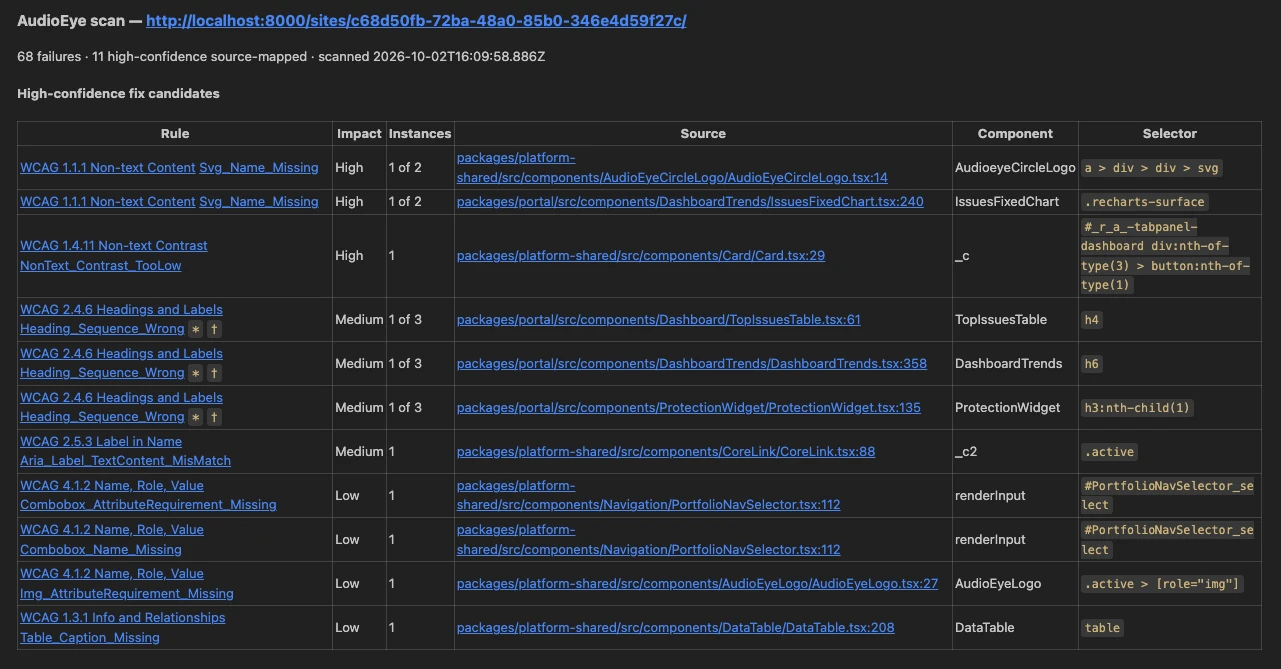
One Markdown report per scan, identical on every host: a header with the failure count and how many are high-confidence source-mapped, then one table per group (high-confidence, passthrough, unmapped) ordered by impact.
- Rule links to the rule's page on the AudioEye Platform (description, WCAG mapping, fix guidance, no login), with
the WCAG criterion linked beside it.
*marks rules AudioEye's runtime can auto-remediate;†marks fixes that need content or design context. - Impact is
High,Medium,Low, or—. - Source links to the file and line, so IDE hosts open it directly.
The full scan is saved as .agent/a11y-scans/<session>/scan-<n>.json with the report beside it as scan-<n>.md. A
report over 8000 characters is replaced inline by a header linking both files.
The inspector panel
The server adds a panel to each tab it scans. It lists the scanned components with an impact pill each, filters them by
mapped, passthrough, or unmapped, and opens a component to show its rules, source location, and instances. Selecting an
instance scrolls the live element into view and outlines it. The Scan button re-scans without a prompt. The agent
selects components with audioeye_inspect.
Turn it off with "inspector": false in .audioeye-mcp.json, or per tab with audioeye_scan({ inspector: false }).
Headless runs never get it. The panel is excluded from scan results.
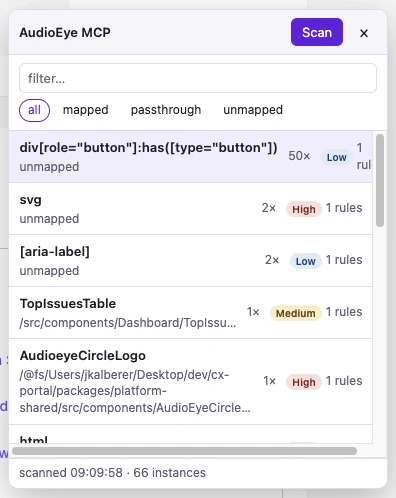
List view. Every scanned component with its impact and rule count. Filter chips narrow the list; the Scan button re-scans.
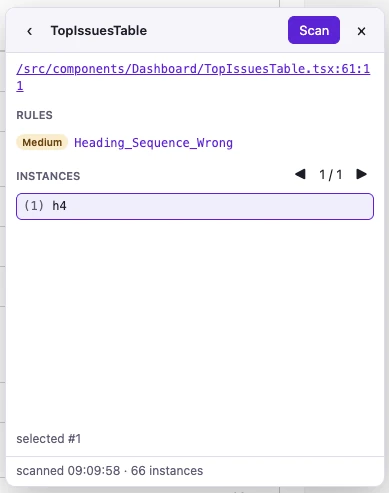
Details view. The source link opens the file in DevTools; the rules carry impact pills; picking an instance outlines it on the page.
DevTools integration
- Issues mapped to elements. With DevTools open, selecting an instance (in the panel or through
audioeye_inspect) selects that node in the Elements panel, so$0is the failing element. - Source mapping in DevTools. The source path in the panel is a link. It opens DevTools on the Sources panel if needed and places the cursor at the mapped line.
Source locations with confidence
Each mapped failure carries confidence: high (the real authoring site) or passthrough (a wrapper, provider, or
cloneElement shim; passthroughReason says which). When a dev-server path matches files in several projects, the
entry lists candidates instead of picking one. See Source mapping support.
Fix and verify
Before proposing a fix the agent reads the surrounding lines with audioeye_get_source_context. After you approve an
edit it calls audioeye_verify_fix, which re-scans and reports whether that failure is gone, allowing the line to move
by up to 15 lines. audioeye_get_a11y_facts tells the agent what assistive technology sees for an element.
One shared browser
One Chrome per profile, with your app login saved at ~/.cache/audioeye-mcp/profile/. Every MCP host on the machine
shares it: a host that starts while it is open attaches instead of launching another. The browser exits with the server
process; the profile keeps your login.
Ignore config
A checked-in .audioeye-mcp.json hides failures you will not fix at source (dev-tool panels, vendor widgets). The agent
proposes entries on the first scan of a page. See Ignoring specific issues.
Available tools
Every tool that touches the AudioEye engine needs a license and fails closed without one; rule metadata lookups are the exception. The bundled prompts drive them for you.
audioeye_open_browser({ url? })opens or focuses the shared Chrome window.audioeye_scan({ url?, runOptions?, waitForReadyMs?, viewport?, inspector? })scans the session's tab, maps failures to source, saves the JSON and report, and returns the report.waitForReadyMs(default 5000) is a maximum.audioeye_inspect({ componentKey, instance? })selects a component from the latest scan in the panel and DevTools.componentKeycomes from the scan JSON.audioeye_get_rule_metadata({ ruleCodes })looks up rule details for an older scan. New scans include them.audioeye_get_source_context({ source, contextLines? })reads the lines around a mapped location; refuses paths outside the workspace.audioeye_get_a11y_facts({ cssSelector })returns accessible name, role, resolvedaria-*attributes, nearest landmark, and nearest focusable ancestor.audioeye_verify_fix({ ruleCode, source, url?, waitForReadyMs?, viewport? })re-scans and reports whether that failure is gone.audioeye_close_browser()closes the browser; the profile is kept.audioeye_login()signs in through device pairing. When a saved sign-in exists, it re-checks it and starts a new pairing if the credentials no longer work.
Bundled prompts
Registered through the MCP prompts API, so every host exposes them under its own naming:
/mcp__audioeye__scan(optionalurl) scans and reports; no edits./mcp__audioeye__fixproposes fixes for a scan already run./mcp__audioeye__scan-and-fix(optionalurl) scans, proposes fixes after approval, and verifies.
Configuration
Optional environment variables, read from the host that launches the server:
| Variable | Purpose |
|---|---|
AUDIOEYE_MCP_WORKSPACE | Repository root for config discovery, saved scans, and source reads. Defaults to the working directory. |
AUDIOEYE_MCP_CONFIG_PATH | Absolute path to a config file, skipping the workspace lookup. |
AUDIOEYE_MCP_PROFILE_DIR | Chrome profile location. Defaults to ~/.cache/audioeye-mcp/profile. |
AUDIOEYE_MCP_HEADLESS | 1 or true runs Chrome without a window. |
Source mapping support
Only React maps issues to source today. Scans run on any page; without a React component tree every issue is unmapped.
For each failing element the scan tries these sources in order:
| Build | How the source is found | Confidence |
|---|---|---|
React 16 and 17 with @babel/plugin-transform-react-jsx-source, React 18.0 to 18.2 | fiber._debugSource from the dev JSX transform | high |
| React 19 | fiber._debugStack, captured by the dev runtime at the JSX call site | high |
| React canaries that drop both fields, including the build Next.js 14 pins | A jsxDEV wrapper on webpack chunk globals | high |
React.cloneElement wrappers (MUI or Joy <IconButton component={NextLink}>, link wrappers) | A cloneElement hook carries the source from the original to the clone | high |
| Babel classic transform | props.__source | high |
| Production builds that ship source maps | V8 function location plus the bundle's source map | passthrough (component-function-location) |
| Last resort for any dev build | Function.prototype.toString(); file-level precision only | passthrough (function-body-source) |
Gate automated fix flows on summary.failuresWithSourceHighConfidence; summary.failuresWithSource includes
passthrough matches.
Not supported today:
- Non-React projects (Vue, Svelte, Angular, Solid, Preact, plain HTML): every issue is
unmapped. - React Server Components without
'use client': the scan maps to the nearest client boundary, taggedpassthroughwithno-named-component-in-walk. Add'use client'for exact sources. - Content from a CMS (Storyblok, Contentful, Sanity, Optimizely, Builder.io): tagged
passthroughwithcms-rendered-content:<CMS>; the fix lives in the CMS. - Third-party iframes: reported as
thirdPartyIframeand not mapped. - Closed shadow DOM: open shadow roots are scanned (selectors chain hosts with
>>>); closed ones cannot be entered. - Production builds without source maps: every issue is
unmapped.
Preact, SolidJS, Inferno, Vue, Svelte, and Angular are planned through a pluggable adapter API.
Ignoring specific issues
A checked-in .audioeye-mcp.json at the repository root (or at AUDIOEYE_MCP_CONFIG_PATH) filters matching failures
out of every scan before the agent sees them:
{
  "ignore": [
    { "cssSelector": ".TanStackRouterDevtools, .TanStackRouterDevtoolsPanel", "comment": "Dev-only widget." },
    { "ruleCode": "Iframe_Name_Missing", "cssSelector": "iframe#cb-master-frame", "comment": "Vendor-owned iframe." },
    { "fileNameContains": "node_modules/", "comment": "Don't patch dependencies." }
  ],
  "inspector": true
}
| Field | Matches when… |
|---|---|
ruleCode | the failing rule code equals this value exactly |
cssSelector | the failing element, or any of its ancestors, matches this CSS selector |
fileNamePrefix | the resolved source file path starts with this string |
fileNameContains | the resolved source file path contains this string |
comment | (not a matcher) why the entry exists |
Fields within an entry are AND'd; entries are OR'd. cssSelector is checked with element.closest on the element and
every shadow host that encloses it, so one container selector covers everything inside it. The report lists which file
was used and how many issues each entry hid, and warns when an entry targets the page root or hides more than a quarter
of the page's failures. The agent treats the file like source code and asks before editing it.
Troubleshooting
Tools fail with a license message
Not signed in to AudioEye…: no stored sign-in and no environment variables. Call audioeye_login or run
npx -y @audioeye/testing-sdk-mcp@latest login.
The stored AudioEye credentials are invalid or inactive.: the saved sign-in was rejected. Call audioeye_login; it
re-checks the stored credentials and starts a new pairing.
The AudioEye testing SDK token is invalid or inactive.: credentials were found but rejected. Run
npx -y @audioeye/testing-sdk-mcp@latest whoami; sign in again if it reports a stored sign-in, or check that both
variables are exported and the Client Token has not been revoked. See
How licensing works.
The server is not listed in my host
Restart the host, then check the entry (claude mcp list, or setup --dry-run). Re-running setup repairs a missing
or drifted entry.
The host shows "Connection closed" right after install
The registration is missing --prefix / and npx hit an EOVERRIDE from the open folder's package.json. Re-run
setup or add --prefix / by hand. An .npmrc that points the @audioeye scope at another registry causes the same
symptom.
The host keeps running an old version
The host runs the npx of whichever Node your login PATH selects. Check
npx -y @audioeye/testing-sdk-mcp@latest --version in a fresh terminal and restart the host. bash users: a login shell
reads ~/.bash_profile, not ~/.bashrc, so nvm's lines must be sourced from there.
Codex logs JSON parse errors at startup
A shell rc file prints to stdout (a greeting, nvm use), which corrupts the MCP stream. Guard those lines with an
interactive check ([[ -o interactive ]] in zsh, case $- in *i*) in bash) or move them out of the rc file.
The browser closes when the host closes
Expected: the browser belongs to the server process. Your login state is kept in the profile.
Other issues
See the main Troubleshooting guide.